
How to Remove White Background from Image: Complete Guide 2026
Learn how to remove white background from image easily with AI tools, Photoshop, and free online solutions. Step-by-step tutorials for transparent backgrounds.
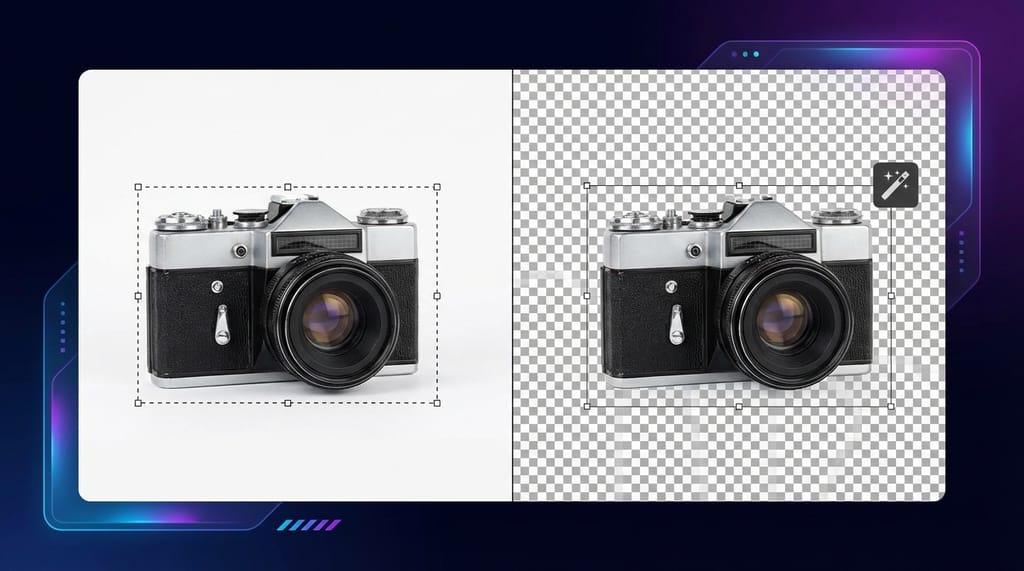
Whether you're preparing product photos for your e-commerce store, creating professional marketing materials, or designing stunning graphics, knowing how to remove white background from image files is an essential skill. A clean, transparent background can transform ordinary photos into polished, versatile assets that seamlessly integrate into any design project.
In this comprehensive guide, we'll explore multiple methods to achieve perfect background removal—from cutting-edge AI-powered tools to traditional manual techniques. By the end, you'll have the knowledge to choose the best approach for your specific needs.
Why Remove White Backgrounds from Images?
Before diving into the techniques, let's understand why background removal matters:
- E-commerce optimization: Product images with transparent backgrounds look more professional on websites and marketplaces
- Brand consistency: Clean cutouts allow products to appear on any colored background
- Marketing flexibility: Removed backgrounds enable creative compositions and collages
- Print-ready files: Transparent PNGs are essential for professional printing projects
- Social media content: Eye-catching graphics require clean, isolated subjects
Method 1: AI-Powered Background Removal (Fastest & Easiest)
Modern AI background remover tools have revolutionized the way we edit images. These intelligent solutions can detect subjects automatically and remove white backgrounds in seconds—no technical skills required.
Using Online AI Tools
The fastest way to remove background from picture files is using dedicated AI platforms. Here's how:
- Upload your image with the white background
- Let AI process the image automatically (usually 3-5 seconds)
- Download the result as a transparent PNG file
For quick, professional results, try the Background Remover Online—it handles complex edges like hair and fur with impressive accuracy.
Benefits of AI Background Removal
| Feature | AI Tools | Manual Editing |
|---|---|---|
| Speed | Seconds | Minutes to hours |
| Skill required | None | Advanced |
| Edge quality | Excellent | Varies |
| Batch processing | Often available | Time-consuming |
| Cost | Free or low-cost | Software licenses |
Method 2: Remove White Background in Photoshop
For users who prefer professional software, Adobe Photoshop offers multiple approaches to delete white background from images.
Quick Selection Method
- Open your image in Photoshop
- Select the Quick Selection Tool (W)
- Click and drag over the white background area
- Press Delete to remove the selected area
- Save as PNG to preserve transparency
Magic Wand Technique
The Magic Wand Tool works especially well for solid white backgrounds:
- Select the Magic Wand Tool (W)
- Set Tolerance to 20-32 for pure white backgrounds
- Click on the white area to select it
- Go to Select > Inverse to select your subject instead
- Copy and paste to a new layer, then delete the background layer
Remove Background Using Channels
For complex images with fine details:
- Open the Channels panel
- Find the channel with the highest contrast
- Duplicate this channel
- Use Levels (Ctrl+L) to increase contrast
- Load the channel as a selection and create a layer mask
Method 3: Free Online Tools for Background Removal
Not everyone has access to expensive software. Fortunately, several free background remover options exist:
Browser-Based Solutions
- Remove.bg: Specialized AI for person and product photos
- Photopea: Free Photoshop alternative in your browser
- GIMP Online: Open-source editing capabilities
Mobile Apps
For on-the-go editing to erase background from photos:
- Background Eraser (iOS/Android)
- PhotoRoom (iOS/Android)
- Remove Background (iOS)
Method 4: Batch Processing for Multiple Images
When you need to remove white background from hundreds of images, efficiency becomes crucial.
Automated Workflow Tips
- Organize your files in a dedicated folder
- Use batch processing tools that support automation
- Set consistent parameters for uniform results
- Quality check a sample before processing all files
Professional platforms often include batch capabilities. For removing unwanted elements beyond backgrounds, the Object Remover Online tool can help clean up any remaining imperfections.
Best Practices for Perfect Background Removal
Prepare Your Source Image
- Use high-resolution photos for better edge detection
- Ensure good lighting to create clear contrast
- Avoid shadows that blend with white backgrounds
- Shoot subjects against pure white (#FFFFFF) when possible
Optimize Output Quality
- Export as PNG to maintain transparency
- Use 24-bit PNG for photographs
- Consider WebP format for web optimization
- Check edges at 100% zoom before finalizing
Handle Challenging Subjects
Some subjects require extra attention:
| Subject Type | Challenge | Solution |
|---|---|---|
| Hair/Fur | Fine strands | AI tools or refine edge in Photoshop |
| Glass/Transparent objects | Reflections | Manual masking with careful attention |
| Shadows | Blending issues | Recreate shadows on new background |
| White clothing | Edge detection | Adjust tolerance or manual selection |
Common Mistakes to Avoid
When learning how to remove white background from image files, watch out for these pitfalls:
- Ignoring edge quality: Always zoom in to check for rough or jagged edges
- Losing important details: Hair, fabric textures, and fine lines need careful handling
- Wrong file format: Save as PNG, not JPEG, to preserve transparency
- Overlooking color fringing: White halos around subjects indicate incomplete removal
- Not checking on dark backgrounds: Test your cutout on various colored backgrounds
Advanced Techniques for Professional Results
Refine Edge in Photoshop
The Select and Mask workspace provides powerful tools:
- After making a selection, click Select and Mask
- Use the Refine Edge Brush on hair and complex edges
- Adjust Smooth, Feather, and Contrast settings
- Set Output to Layer Mask for non-destructive editing
Color Decontamination
Remove color spill from the original background:
- In Select and Mask, check Decontaminate Colors
- Adjust the slider to remove white fringing
- This automatically creates a new layer with corrected edges
Choosing the Right Tool for Your Needs
Consider these factors when selecting your background removal method:
- Volume: Single images vs. batch processing needs
- Complexity: Simple objects vs. detailed subjects
- Budget: Free tools vs. professional software
- Time: Quick results vs. perfection-focused editing
- Skill level: Beginner-friendly vs. advanced features
Frequently Asked Questions
How do I remove a white background and make it transparent?
Upload your image to an AI background removal tool, let it process automatically, then download the PNG file. The transparent areas will show as a checkered pattern in editing software.
Can I remove white background from image for free?
Yes! Many online tools offer free background removal services. AI-powered options provide professional results without requiring any payment or software installation.
What file format preserves transparent backgrounds?
PNG format is the standard for transparent images. Avoid JPEG, which doesn't support transparency and will replace transparent areas with white.
How do I remove white background from multiple images at once?
Use batch processing features available in professional tools or online platforms that support multiple file uploads. This saves significant time when processing large image libraries.
Why does my image still show white edges after background removal?
This is called "color fringing" or "white halo." Use edge refinement tools, decontaminate colors in Photoshop, or choose an AI tool with better edge detection capabilities.
Conclusion
Mastering how to remove white background from image files opens up endless creative possibilities. Whether you choose AI-powered solutions for speed and convenience or prefer the control of manual editing in Photoshop, the key is selecting the right tool for your specific project requirements.
For most users, starting with an AI background remover provides the best balance of quality and efficiency. As your needs grow more complex, you can explore advanced techniques in professional software to achieve pixel-perfect results.
Ready to transform your images? Start with a simple upload and experience how easy professional background removal can be with today's intelligent tools.